

The transition from a Sitecore XP solution to a headless model, such as Sitecore XM Cloud, presents a good challenge: adapting the existing search solution. With Azure Search being deprecated, understanding how to migrate to new search providers like Sitecore Search becomes crucial
🔑 One of the key steps is precise preparation, which involves understanding the current implementation and properly estimating the tasks.
Estimating the effort to do that will involve your technical team, so we’ll see how to estimate the workload involved in this process. In addition, we will understand the equivalency between Azure Search and Sitecore Search and approaches for migrating the computed fields.
1. Understanding Your Existing Search
Without an accurate map of current indexes, fields, and dependencies that are running on your Azure environment, you can miss critical details that can break your plan. Let’s start mapping them!
Mapping Indexes
The first thing we should do is: identify the number of indexes configured in your Azure Search and map them to the equivalent in Sitecore Search – the Sources.
The concept of Source “replaces” the traditional Index used on Solr or Azure Search. Unlike an index, which primarily focuses on storing and querying structured data, a source in Sitecore Search offers a more flexible and dynamic way to map and manage not just items from a CMS but also various types of documents such as HTML pages, PDFs, and JSON objects.
This shift represents a significant enhancement in how data is indexed and made searchable. A source can be configured to pull content automatically via web crawlers (Pull Sources) or receive data manually through APIs (Push Sources). Whether you are indexing CMS items, external web pages, or metadata-rich documents, Sitecore Search sources provide the tools to do it.
🔗 Want to learn more about Sources? Take a look at: https://doc.sitecore.com/search/en/users/search-user-guide/manage-sources.html
We’re only interested in the custom indexes and to find them you can go to Launch Pad > Control Panel > Indexing Manager
Custom indexes are often listed toward the end. For example, in the image below, there are 6 custom indexes. You can ignore the web indexes and we end up with 3.
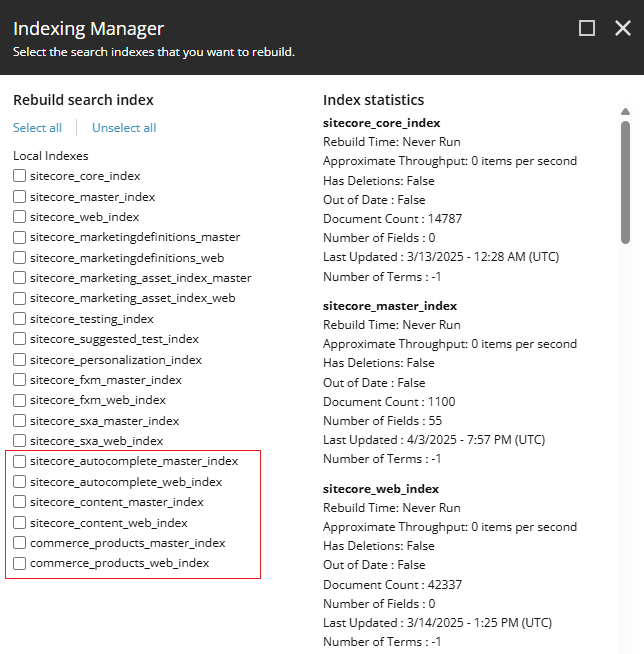
*A more accurate approach is to review the configuration files in App_Config/Include to identify which indexes are truly customized for your project.
This isn’t set in stone, and you can do it based on your experience. However, in general, consider the following if you have less than 5 indexes:
01 index → 01 source → 2 hour
For more indexes, consider:
01 index → 01 source → 1 hour
I believe we learn through experience, and for the first index, your team is still getting used to the configuration process. As you become more accustomed to it, the time required will naturally decrease.
Ok, but what does this estimation mean? For example, if you have 3 custom indexes you’ll need to estimate the amount of time to configure 3 new sources. It would represent 2 hours for each one.
✨ From our example, comes our first number: 6 hours (2×3).
Mapping Fields
Indexed fields, or just fields, are the data points from your content repository that are processed and stored in the search engine’s index. These fields represent individual attributes of a content item, such as titles, descriptions, tags, or metadata. For example:
- Title: The name of a page or product.
- Product Description: A summary of the product.
- Tags: Categories or keywords for filtering results.
Why Is It Important to Define Indexed Fields?
Properly defining which fields are indexed ensures the following:
- Target: Define keywords and phrases that match the searches.
- Relevance: Only the necessary data is indexed, reducing noise in search results.
- Performance: Limiting the number of fields indexed reduces the size of the index and speeds up search performance.
- Flexibility: Proper fields allow for advanced search scenarios, like faceted navigation or autocomplete suggestions.
Types of Indexed Fields
Do you know the types of fields? We have two:
- Basic Fields:
These are straightforward mappings of fields from your content items to the index. Think on your custom template:- What fields would you like to index? Examples include Product ID, Manufacturer Name, Created At, and so on.
- Computed Fields:
These are dynamic fields whose values are generated at runtime rather than being directly mapped from content. These fields are particularly useful when you need to calculate or aggregate data. For instance:- Calculating a Rating field based on user reviews – every day a new user submits a review which means that we don’t have control over it and it requires a constant reevaluation.
- Generating a Product ID by concatenating multiple fields into a single searchable field when you need a unique ID.
- Modify the format of the ‘Created At‘ field, which is a Datetime, and comes with ‘20250318T030000Z’ to readable data such as ‘2025-03-24 03:00 am’.
Alright, we understand the fields and types. Now, we need to determine how many exist in the solution. Look for definitions like <fieldMap> and <field>:
<indexConfigurations>
				<defaultSolrIndexConfiguration>
					<fieldMap>
			            <fieldNames hint="raw:AddFieldByFieldName">
			              <field fieldName="productId" returnType="string" />
			            </fieldNames>
			            <fieldNames hint="raw:AddFieldByFieldName">
			              <field fieldName="manufacturerName" returnType="string" />
			            </fieldNames>
					</fieldMap>
					<documentOptions>
						<fields hint="raw:AddComputedIndexField">
							<field fieldName="rating" returnType="int">YourProject.Search.ComputedFields.Rating, YourProject.Search</field>
							<field fieldName="createdAt" returnType="datetime">YourProject.Search.ComputedFields.CreatedAt, YourProject.Search</field>
						</fields>
					</documentOptions>
				</defaultSolrIndexConfiguration>
			</indexConfigurations>
In the configuration above we have 2 basic fields (fieldName tag) and 2 computed ones (fields tag). Take note of yours because migrating them to Sitecore Search will involve a good complexity around creating metadata, webhooks, and setting up document extractors for each field. We can cover these complexities in another post.
Estimation for Basic fields:
01 basic field → 03 hours
And for computed fields – they’re more complex, so be careful estimating it:
01 computed field → 06~08 hours
⚠️ Estimating the time required for computed fields depends on the complexity of the transformation. If a simple metadata rule can be applied, it may take around 6 hours. However, if external services or webhooks are needed for real-time updates, the effort can increase significantly.
And here’s comes other 2 numbers:
- number of basic fields 2 x 3 → 6 hours
- number of computed fields 2 x 8 → 16 hours
✨ At this point, we have the basic estimation for our project: 6 + 16 → 22 hours.
Is it all? No! With the estimation above we are ready to run the very basic search but we still have other tasks, like:
- Search Queries: Review how search queries are structured in your solution. Are they using direct API calls, LINQ queries, or Sitecore’s ContentSearch API? Any queries that rely on specific features of Azure Search (e.g., scoring profiles, custom analyzers) will need to be adapted.
- Indexing Logic: Examine how content is indexed and updated. Are there scheduled tasks or event-driven processes that trigger reindexing? Sitecore Search may require a different approach using webhooks or push sources.
- Filtering and Faceting: Understand how filtering and faceting are implemented. Sitecore Search provides its own way of handling facets, and adjustments might be necessary.
- Computed Fields Processing: If your existing computed fields depend on Sitecore pipelines or custom C# classes, you’ll need to migrate them to Sitecore Search’s metadata and document extractors.
Final Estimation – Summing up all the steps:
- Index mapping: 6 hours
- Field mapping: 22 hours
- Code refactoring: ~52 hours
✅ Minimal estimated effort: ~80 hours
Some other numbers that you should consider:
- Reviewing and updating search queries → 16-24 hours
- Adapting indexing logic and processes → 12-20 hours
- Refactoring computed fields processing → 8-12 hours
- Testing and validation → 16-20 hours
Common Pitfalls to Watch For:
- Hidden dependencies in computed fields that call external services
- Custom analyzers or tokenizers that don’t have direct equivalents
- Complex LINQ queries that need significant refactoring
As always, adjustments should be made based on your team’s familiarity with the new platform and the complexity of the existing implementation.
That’s all folks! 😎
Leave a Reply